
Photo Editor Video Maker Music
Supercool LabsVideo Players & Editors
4.4434.00 Reviews
- Version
- 2.0.5
- Installs
- 10.00M
- Age Rating
- Everyone
Screenshots
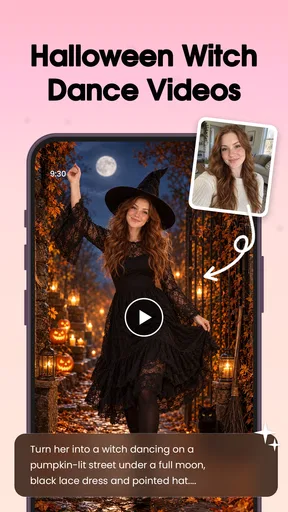
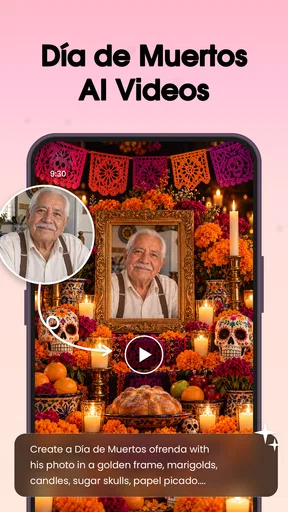
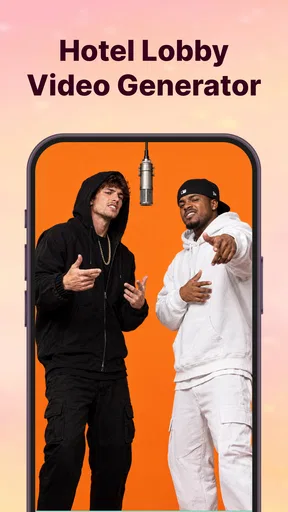
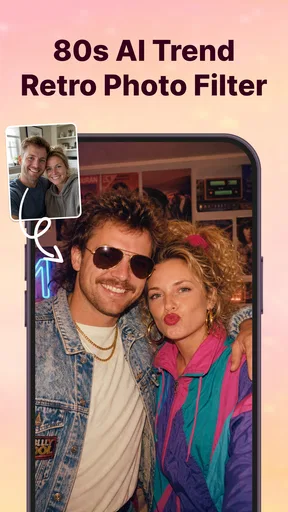
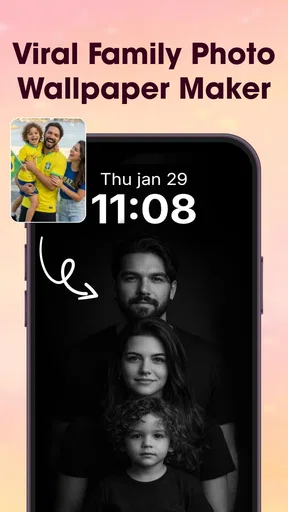
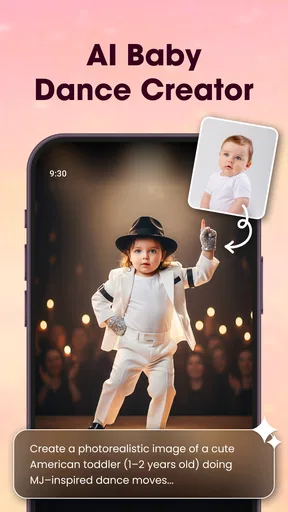
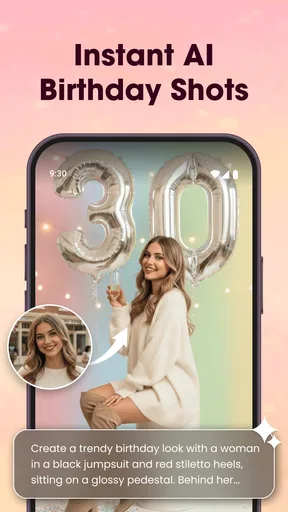
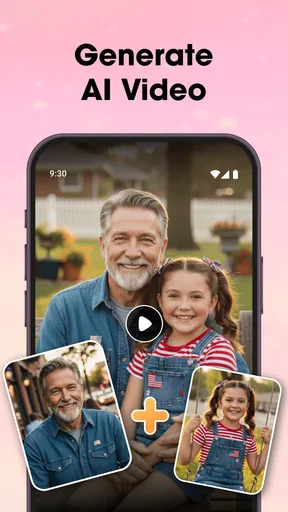
Our Review of Photo Editor Video Maker Music
 Analysis by Appyee
I usually reach for a dedicated editor when I want a polished result, but a combined photo and video app can be more convenient for everyday projects. Photo Editor Video Maker Music brings those jobs together, with music and slideshow creation alongside editing. I find that kind of setup most useful when the goal is to make something shareable quickly, rather than learn a full desktop-style editing workflow.
Where edits can get stuck
An all-in-one layout sounds simple, but the first point of friction is often deciding where to start. A photo edit, a short video and a slideshow are different projects, even if they use some of the same pictures. I’d begin by choosing the intended result before importing anything: a single improved image, a sequence of clips, or a slideshow built around photos. That small choice helps keep a casual edit from turning into a cluttered collection of experiments.
Music can bring a slideshow or video together, but it also adds a decision that is easy to leave until too late. If you are using a track from your own library, pick it before fine-tuning the sequence, then check whether the changes still feel right against the soundtrack. The useful trade-off is that one app can keep the creative steps together; the downside is that a quick project can become fiddly if you keep changing its direction midway through.
Setup checks before the first project
This is a free app from beauty app inc in the video editing category, and it is rated for Everyone. It has a 4.0 average from around 32,000 ratings and has passed 10 million installs, so it has found a sizeable audience. The current version is 1.2.5, with Android 7.0 as the minimum operating system. I’d check that your device meets that requirement before troubleshooting an installation or launch problem.
It is also worth remembering that free to download does not mean every possible use is cost-free: the app offers in-app purchases, with items ranging from $12.99 to $154.99. I would look carefully at any purchase screen and decide whether the feature in question is essential to my project before paying. If all I need is a straightforward edit, I’d first see how far I can get with the basic workflow rather than assume an upgrade is necessary.
For a smoother start, I’d choose a small test project using a few photos before bringing in a large batch. That gives you a chance to learn the editing flow without having to sort through a full camera roll. It is also a practical way to see whether the controls feel comfortable on your screen and whether the output suits the place you plan to share it.
Recovering a project without starting over
If an edit stops behaving as expected, I would avoid making several changes at once. First, return to the project and check which part is actually causing trouble: the selected images, the order of the sequence, or the soundtrack. If the result feels wrong after adding music, temporarily reconsider the track and sequence together rather than redoing every photo adjustment. A simple, reversible check is often faster than rebuilding a project from scratch.
For a slideshow, a useful workflow is to settle the image order before polishing individual pictures. Put the strongest opening image first, group related moments, and leave a clear ending rather than letting the sequence stop abruptly. Then make the photo adjustments and review the whole piece once. This keeps a small change to the order from undoing a lot of careful work later.
For a short video, I’d make a rough pass first: choose the material, establish the order, and only then spend time on transitions or overlays. Those finishing touches can help, but they cannot rescue a sequence that feels confusing. Keeping the early edit plain makes it easier to spot whether the story itself works before adding decoration.
Making the most of an all-in-one editor
I find an all-in-one editor most useful when I decide what I want to make before I start tapping through tools. In this section, I’ll look at how to keep a small photo-and-music project focused, so the convenience of having several creative tasks together doesn’t turn into unnecessary tweaking.
Choosing the right workflow for the job
First off, the thing that caught my eye was how Photo Editor Video Maker Music bundles up a bunch of features into one neat package. Whether you’re a newbie or a seasoned pro, this app’s got something for everyone. From basic photo editing tools like cropping and filters to advanced video features like transitions and overlays, it’s got you covered. And don’t even get me started on the music options—you can add a soundtrack to your video from your own library or browse through their selection. It’s like magic!
That range makes most sense when a project moves between still images and a short, music-led result. Imagine getting home after a family gathering and wanting to share a handful of photos as a slideshow. I’d pick the pictures, arrange them into a beginning, middle and ending, then choose music and make only the adjustments that help the moments read clearly. The advantage is convenience: there is no need to jump between a photo tool and a separate slideshow maker for a modest project.
For someone who mainly wants to crop and filter one picture, the broader toolkit may be more than they need. A dedicated photo editor can be a better fit if detailed image work is the priority. Likewise, a person making a long video with precise timing may prefer a specialist video editor. This app’s appeal is the handoff between photos, video and music, not a guarantee that it will replace every specialised tool.
Getting comfortable with the controls
Now, I’m no tech wizard, but this app makes me feel like one. The interface is super user-friendly. Everything is laid out in a way that just makes sense. Want to edit a photo? Boom, the tools are right there. Need to tweak a video? Easy peasy! The intuitive design means you don’t have to spend hours figuring out how to make it work. It’s all about getting creative without the hassle.
Even with an approachable layout, I’d still take a moment to learn the difference between the photo and video paths rather than assume every control works the same way in both. On a first session, try one crop and filter on a picture, then start a tiny video experiment with a transition. You will quickly learn whether you like the feel of the controls before committing time to a larger edit.
One practical habit is to preview the complete result after making a major change, not just the current image or clip. A filter that looks pleasing on one photo may feel out of place beside the next; a transition that seems stylish in isolation may distract from the moment it joins. Reviewing the sequence as a whole helps maintain a consistent mood without requiring elaborate editing skills.
Customising without overworking the result
What really gets me excited is the level of customization. You can personalize your edits to match your vision perfectly. With a variety of filters, effects, and fonts, you can make your photos and videos truly unique. Plus, the app allows you to adjust every little detail, ensuring that your creation turns out exactly how you imagined it. It’s like having a personal art studio at your fingertips.
My main caution is that more choices can lead to too many competing styles. I’d pick one visual direction—such as a restrained set of filters or a consistent font treatment—and use it through the project. For a slideshow of an outing, keeping edits subtle can let the photos carry the story; for a playful clip, stronger effects may fit better. The best choice depends on the material, not on how many options are available.
Text is another area where restraint helps. If you add wording, keep it brief enough to read while the image is on screen and avoid placing it where it competes with the subject. I’d check it on the finished sequence rather than judging it only while editing. This is a small step, but it can make a casual video feel more deliberate without adding much work.
When a problem may be outside the app
If a photo or video is missing, I would first check that I selected the intended material and that it is still available on the device. If the app seems slow or an edit does not respond, closing other demanding tasks and reopening the project is a sensible basic check. I’d make one change at a time and see whether the issue persists, so it is easier to tell whether the problem comes from the project or from the way I am using it.
Sharing can also depend on what happens after the edit. If the finished result does not appear where you expected, check the destination and the usual sharing steps on your device before recreating the project. A successful edit and a successful post are separate parts of the process; treating them separately can save you from needlessly repeating the creative work.
I would not assume that every interruption means the editor has damaged a project. A device that is short on room, a temporary system hiccup, or a mistake in selecting the source material can all make a workflow feel broken. The safest response is to pause, verify the basics, and try a small test before repeating a long edit.
Sharing and the practical verdict
Once you’ve crafted your masterpiece, sharing it is a breeze. The app lets you post directly to your favorite social media platforms, making it super easy to show off your work to the world. Whether you’re looking to impress your followers or just want to share a fun moment with friends, this app makes it happen in a flash.
For everyday sharing, I’d check the finished piece once more before sending it out: make sure the sequence starts where you want, the music suits the images, and any text is easy to read. That final watch-through is especially useful for a slideshow, where a single misplaced photo can change the pace. It is a better use of a minute than adding another effect just because it is available.
So, what’s the final verdict? If you’re looking for a versatile and powerful editing tool, Photo Editor Video Maker Music is definitely worth checking out. It’s packed with features, easy to use, and offers endless creative possibilities. Give it a whirl, and watch your creativity soar!
I’d recommend it most to people who want one approachable place to turn photos and clips into informal, music-backed pieces, and who value convenience over fine-grained control. If you need a specialist editor for detailed image retouching or a highly controlled video timeline, a dedicated alternative is likely the wiser choice. For casual projects, though, the combination of editing and slideshow-making is the reason I’d give it a try.
Verdict
Strengths of Photo Editor Video Maker Music
- Intuitive user interface for easy editing.
- Wide range of filters and effects.
- Supports high-resolution exports.
- Includes music library for video soundtracks.
- Quick sharing to social media platforms.
Limitations of Photo Editor Video Maker Music
- In-app ads can be intrusive.
- Limited features in free version.
- Requires internet for full functionality.
- Occasional crashes on older devices.
- Some features require a steep learning curve.
Other Releases by Supercool Labs
View All
Vidix-AI Photo Video Generator
Art & Design4.2
Similar Picks in This Category
View All
Google TV
Google LLC3.9

iTunes
Apple4.7

YouTube
Google LLC3.8

MX Player
Amazon Mobile LLC4.2

CapCut - Video Editor
Bytedance Pte. Ltd.3.5

PLAYit-All in One Video Player
PLAYIT TECHNOLOGY PTE. LTD.4.5
Frequently Asked Questions
What features does Photo Editor Video Maker Music offer?
Photo Editor Video Maker Music is a versatile app that combines photo editing, video creation, and music integration. It provides a range of filters, effects, and editing tools for photos, alongside options for creating and editing videos. Users can also add background music from a rich library to enhance their projects.
Is Photo Editor Video Maker Music free to use?
The app offers a free version with basic features, but it also includes in-app purchases for premium features. These might include additional filters, effects, and advanced editing tools. Users can choose to upgrade for a more comprehensive experience or stick to the free version for standard tasks.
Can I use my own music tracks in the app?
Yes, Photo Editor Video Maker Music allows users to add their own music tracks to their videos. This feature enables greater personalization and creativity in video projects. Additionally, the app offers a library of music tracks to choose from, catering to different moods and styles.
What are the system requirements for the app?
The app is compatible with both Android and iOS devices. For optimal performance, it is recommended to have a device running Android 5.0 or later, or iOS 11.0 or later. Sufficient storage space is also necessary to handle processing of media files efficiently.
How user-friendly is the interface of Photo Editor Video Maker Music?
The app is designed with user-friendliness in mind, featuring an intuitive interface that is easy to navigate. Beginners can quickly learn to use the basic features, while more advanced users can explore the app’s deeper functionalities. The layout is clean, making for an enjoyable editing experience.
